What is physical server backup?
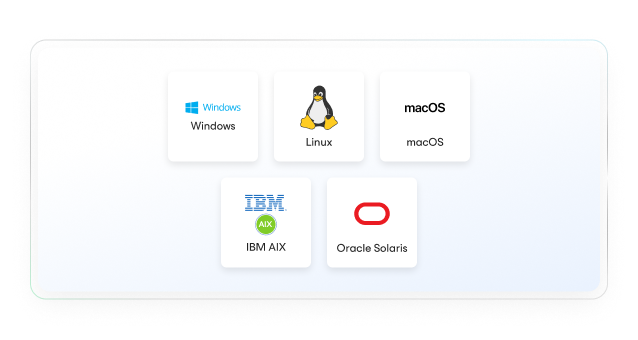
Physical server backup protects servers that run directly on hardware instead of as virtual machines. Veeam Backup & Replication backs up physical machines running Microsoft Windows, Linux, IBM AIX, Oracle Solaris, or macOS.
Which operating systems does Veeam support for physical server backup?
Veeam protect physical machines running Microsoft Windows, Linux, IBM AIX, Oracle Solaris, and macOS, plus cloud-based machines running Microsoft Windows or Linux. Check the Veeam Help Center for the current list of supported operating system versions.
How do I manage backups for many physical servers from one place?
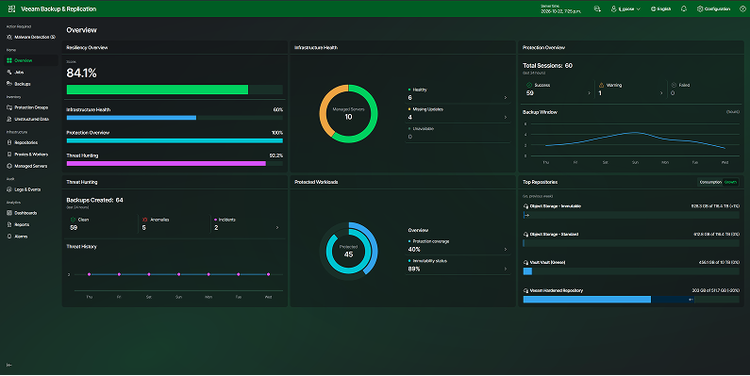
Veeam Backup & Replication works as a centralized control center. You can remotely deploy and run administration, data protection, and disaster recovery tasks from the Veeam Backup & Replication console.
Can I restore a physical server as a virtual machine?
Yes. Veeam can recover physical machine backups as virtual machines on platforms including VMware vSphere, Microsoft Hyper-V, Nutanix, Microsoft Azure, and Amazon EC2.
What can I restore from a physical server backup?
Veeam can recover entire computers, individual volumes, files, and application items from a physical server backup. Veeam creates crash-consistent and application-consistent backups, and you can run recovery verification on them.
Where can I store physical server backups?
Backups can be stored on direct attached storage, network attached storage, deduplicating storage appliances, object storage, and Veeam Cloud Connect repositories. You can also copy backups to other locations and archive them to tape.
How do I back up my entire Linux server?
Due to how Unix and Linux are designed, they list hardware device drivers and disk partitions along with other special device files. These are all directly in the file system, just like other files. This gives anyone the opportunity to easily copy these files to a new location for a backup. If all you need to do is copy files from one location to another, DD, commands and rsync are well-tested performers, but take caution with these commands. If they’re not performed correctly, you can accidentally delete the data you set out to protect.
Veeam Backup & Replication raises the bar for Linux server backups with Veeam Agent for Linux and is designed to be safe, reliable and feature-rich so your solution can take on the titans of Linux file copy that have been there for years. Veeam Backup & Replication uses the power of a GUI to perform centralized management and deployment while offering a command-line interface when needed. You can now both easily create Linux backup jobs and perform restore operations, combined with a whole ecosystem of additional features to accompany your Linux server backups.
How do I restore a Linux system?
Start with what you need to get back. Veeam gives you three main paths: a full
bare-metal restore, a volume restore, or a restore of specific files and folders. Each path has its own steps, and you can combine some of them when a recovery calls for it. For a bare-metal restore, boot from the Veeam Recovery Media ISO or reinstall the base distribution, then restore your system onto it. Only need a few files and folders? Use the built-in file-level recovery wizard, or recover them from the recovery media. Moving your Linux server to virtual or the cloud?
Export the backup as a virtual disk, run Instant Recovery to a virtual machine (VM) for a fast physical-to-virtual (P2V) move, or
restore directly to the public cloud. Veeam Backup & Replication gives you a full range of recovery options for every environment.
How do I know if Linux is running a backup?
Simply pipe in a command to enable progress and see if the backup is running. Unfortunately, this works fine for one job, but what about 10, 20 or 50? It’s much easier to view the progress of multiple backups and detailed
job statistics within Veeam Backup & Replication’s console. Veeam Backup & Replication can also enable email notifications and
reports so you can stay up-to-date on the progress and outcome of your backups.
Is Veeam Agent for Mac compatible with my macOS version?
Veeam Agent
for Mac supports a wide range of macOS versions which ensures compatibility with both recent and older versions of macOS. For specific system requirements, please refer to the
System requirements page.
How does Veeam Agent for Mac integrate with existing workflows?
Veeam Agent for Mac easily integrates with your existing deployment workflows and can be centrally managed with Veeam Backup & Replication. This eliminates the need for multiple products and tools.
Can I recover individual files with Veeam Agent for Mac?
Yes, Veeam Agent for Mac offers fast and flexible recovery options, including the ability to recover individual files and user profiles either on-device or remotely through a wizard-driven process.
How do I install and get started with Veeam Agent for Mac?
Install Veeam Agent for Mac through a single universal package that fits the deployment workflows your teams already use. The agent can be deployed on individual Macs and managed centrally from Veeam Backup & Replication alongside your other environments, so there's no separate console to learn. Once installed, you configure a backup policy for user data, files, and folders and let it run on your schedule. See the user guide for step-by-step setup and system requirements.
Can I back up my Mac to cloud or object storage?
Yes. Veeam Agent for Mac supports offsite backup so you can meet the 3-2-1-1-0 rule, sending backups directly to object storage in the public cloud or in your own datacenter. This gives your Mac fleet reliable, flexible off-site protection alongside local backups. Direct object-storage backup requires a licensed edition; the free edition does not include it.
How is Veeam Agent for Mac different from Apple Time Machine?
Time Machine is designed for individual, local backups, while Veeam Agent for Mac is built for organizations that need to protect many Macs centrally. Veeam adds scalable, policy-based protection managed from Veeam Backup & Replication, offsite backup to object storage in the cloud or datacenter for 3-2-1-1-0 compliance, and wizard-driven recovery of user profiles and individual files, on-device or remotely.
What is Veeam Agent for IBM AIX?
Veeam Agent for IBM AIX is a comprehensive backup solution designed to protect AIX global environments, offering improved performance, optimized resource consumption, and increased backup size limits.
How does Veeam Agent for Oracle Solaris work?
Veeam Agent for Oracle Solaris provides enhanced file-level backup, allowing for improved performance, optimized resource consumption, and larger backup scopes.
How does Veeam Agent for IBM AIX handle WPARs?
Veeam Agent for IBM AIX allows for isolation in a separate non-shared system WPAR, enabling file-level backup with improved performance and optimized resource consumption.
What is the interface like for Veeam Agent for IBM AIX?
Veeam Agent for IBM AIX offers a simplified and intuitive command-line interface with extensive help and man pages available right in your IBM AIX console.
How does Veeam Agent for Oracle Solaris handle global zones?
Veeam Agent for Oracle Solaris allows for installation in global zones or isolation in a separate global zone, enabling enhanced file-level backup.
What is the interface like for Veeam Agent for Oracle Solaris?
Veeam Agent for Oracle Solaris offers a simplified and intuitive command-line interface with extensive help and man pages available right in your Oracle Solaris console.
How secure are Veeam Agents?
Veeam Agents ensure security through encryption and compression of backups at rest and data in-flight, offering near-endless opportunities with custom pre- and post-job scripting options.
How does Veeam Agent for IBM AIX improve backup tasks?
Veeam Agent for IBM AIX allows for isolation in a separate non-shared system WPAR, enabling file-level backup with improved performance and optimized resource consumption.
How does Veeam Agent for Oracle Solaris improve backup tasks?
Veeam Agent for Oracle Solaris allows for installation in global zones or isolation in a separate global zone, enabling enhanced file-level backup.
How does Veeam Agent for IBM AIX manage resource consumption?
Veeam Agent for IBM AIX optimizes resource consumption during backup tasks, ensuring efficient use of system resources.
How does Veeam Agent for Oracle Solaris manage resource consumption?
Veeam Agent for Oracle Solaris optimizes resource consumption during backup tasks, ensuring efficient use of system resources.