- Veeam Support Knowledge Base
- How to Create a Veeam Support Case
How to Create a Veeam Support Case

Cheers for trusting us with the spot in your mailbox!
Now you’re less likely to miss what’s been brewing in our knowledge base with this weekly digest

Oops! Something went wrong.
Please, try again later.
Purpose
To contact the Veeam Sales team or the Renewals team, please use the links found within the My Account portal under Sales and Renewals:
Solution
- Go to https://my.veeam.com
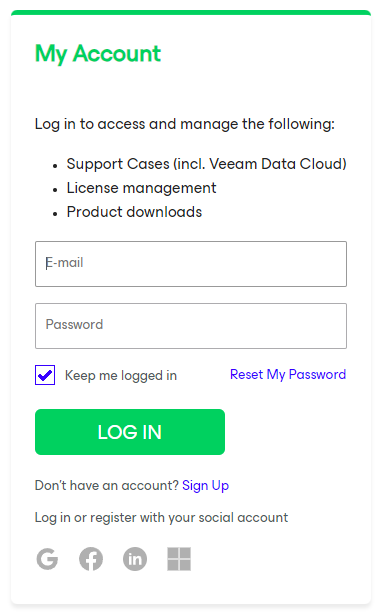
- Sign In with your Veeam Account.
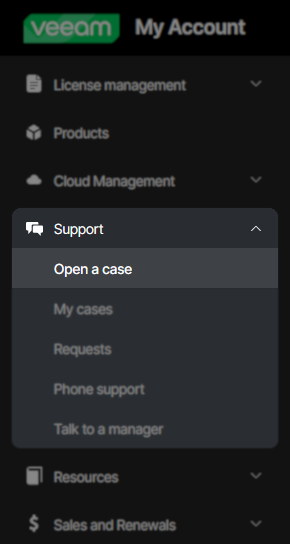
- Expand the Support section in the navigation menu and click Open a case
Note: The navigation menu may be minimized, requiring that you click a » symbol on the center-left edge to expand it. On mobile, the navigation menu will be moved under a ≡ symbol in the page's top-left corner.
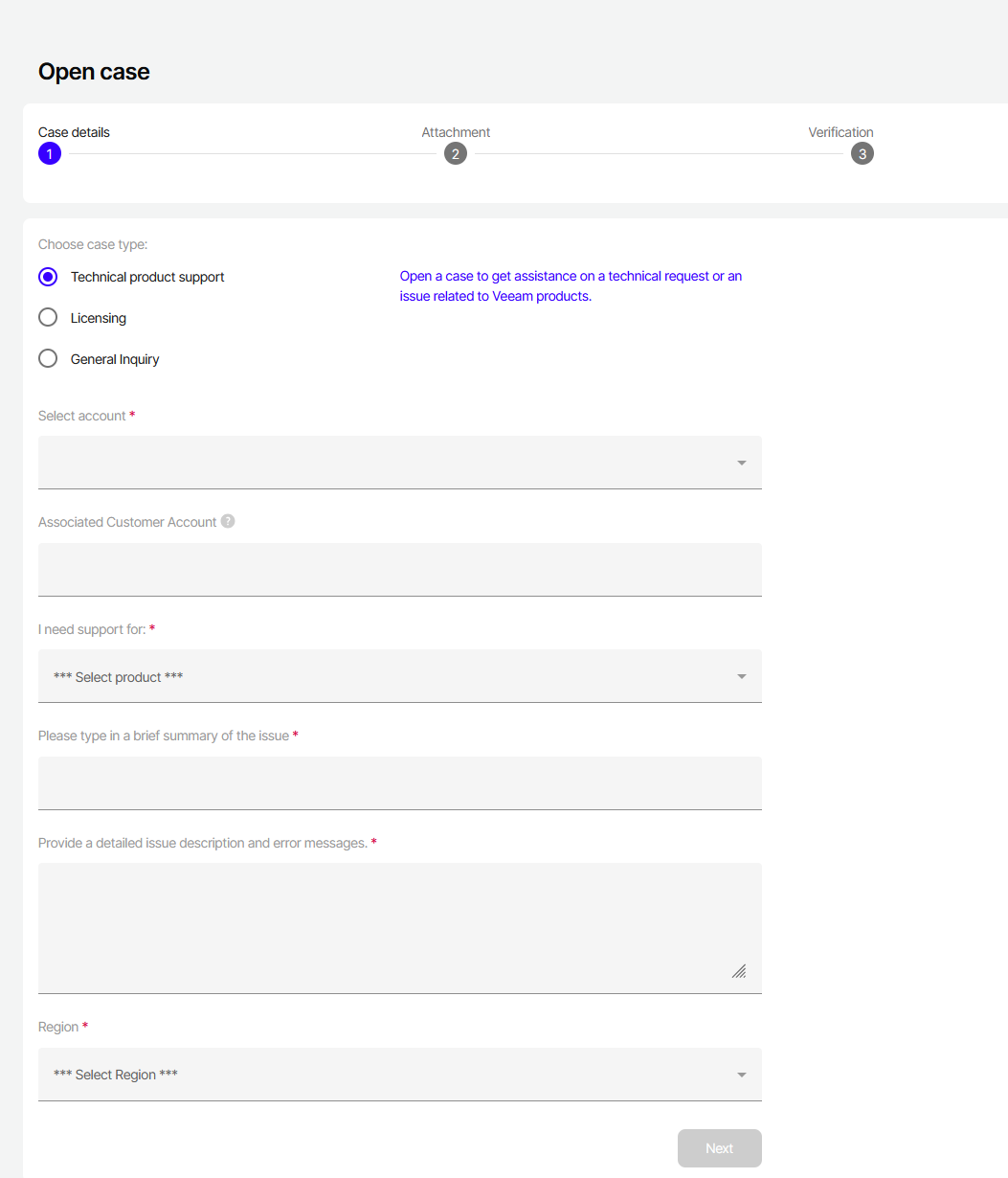
- Choose a Case Type:
- Technical product support — for Break-fix issues or any technical questions related to Veeam products.
Note: You must be a Case Administrator to open a Technical product support case. - Licensing — for questions relating to software licensing.
- General Inquiry — for feedback or issues related to Veeam websites and services, not products.
- Technical product support — for Break-fix issues or any technical questions related to Veeam products.
- After selecting the case type, fill in the case details.
Notes:- If you know that your company has Paid Products but do not see an option for Paid Products in the "I need support for:" drop-down, you may not have been assigned as a Case Administrator. Review: KB2211: My Account Portal - Role Management FAQ
- If you purchased Veeam Plug-In for AWS from the AWS Marketplace, select the option for Veeam Plug-In for AWS under the Marketplace section
 . You will be prompted to input the AWS account ID and Product Support ID
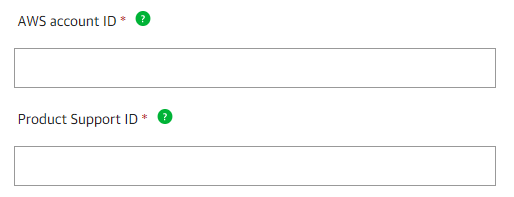 , click the green question mark ? near the form to see where to find the information to fill those fields.
- On the next page, you will be asked to add attachments to your case.
For Technical product support cases, it is imperative that you provide logs when creating a case so that Veeam Support may best assist you.- Select the bucket relative to your region.
- For Technical support cases relating to Veeam Backup & Replication, please review this article for details on how to collect logs: https://www.veeam.com/kb1832
- For cases related to Veeam Agent for Microsoft Windows, please review this article for details on how to collect logs: https://www.veeam.com/kb2404
- On the last page of case creation, you will have an opportunity to review all details provided and add specific contact details.
After creating a case, you may elect to call Veeam phone support. You'll be asked to enter an active case number so your call can be routed to the specialty department for your product/issue.
More Information
Related Articles
- Veeam Account Sign In FAQ
- How to Create a Veeam Account
- Veeam My Account Portal - MFA Guide
- My Account Portal "Recovery email for case contact" Guide
- My Account Portal - Role Management FAQ
- How to Create a Veeam Support Case
- My Account Portal: "No licenses can be found for your account"
- How to Attach Files to a Veeam Support Case
- How to Attach a File Larger Than 5GB to a Support Case
- How to Generate an SFTP Account for a Support Case
- How to Contact Veeam Support Management
- Support Partners Case Management
If this KB article did not resolve your issue or you need further assistance with Veeam software, please create a Veeam Support Case.
To submit feedback regarding this article, please click this link: Send Article Feedback
To report a typo on this page, highlight the typo with your mouse and press CTRL + Enter.
