- Veeam Support Knowledge Base
- Support Partners Case Management
Support Partners Case Management

Cheers for trusting us with the spot in your mailbox!
Now you’re less likely to miss what’s been brewing in our knowledge base with this weekly digest

Oops! Something went wrong.
Please, try again later.
Challenge
A new feature on the ProPartner Portal allows all registered users of a ProPartner's organization to submit and manage Veeam support tickets on behalf of that ProPartner's customers. Previously, the Case Administrator feature only allowed specific employees at a ProPartner organization the permission to handle their customers' support cases. With this new feature, all members of a ProPartner's team can now access their customer's cases with only a few clicks.
This short video explains the main features of the new functionality and will walk you through its main steps.
Please note: to use this functionality you must have an active ProPartner registration.
Solution
How to request rights to manage cases for a customer
- Log in to the ProPartner portal.
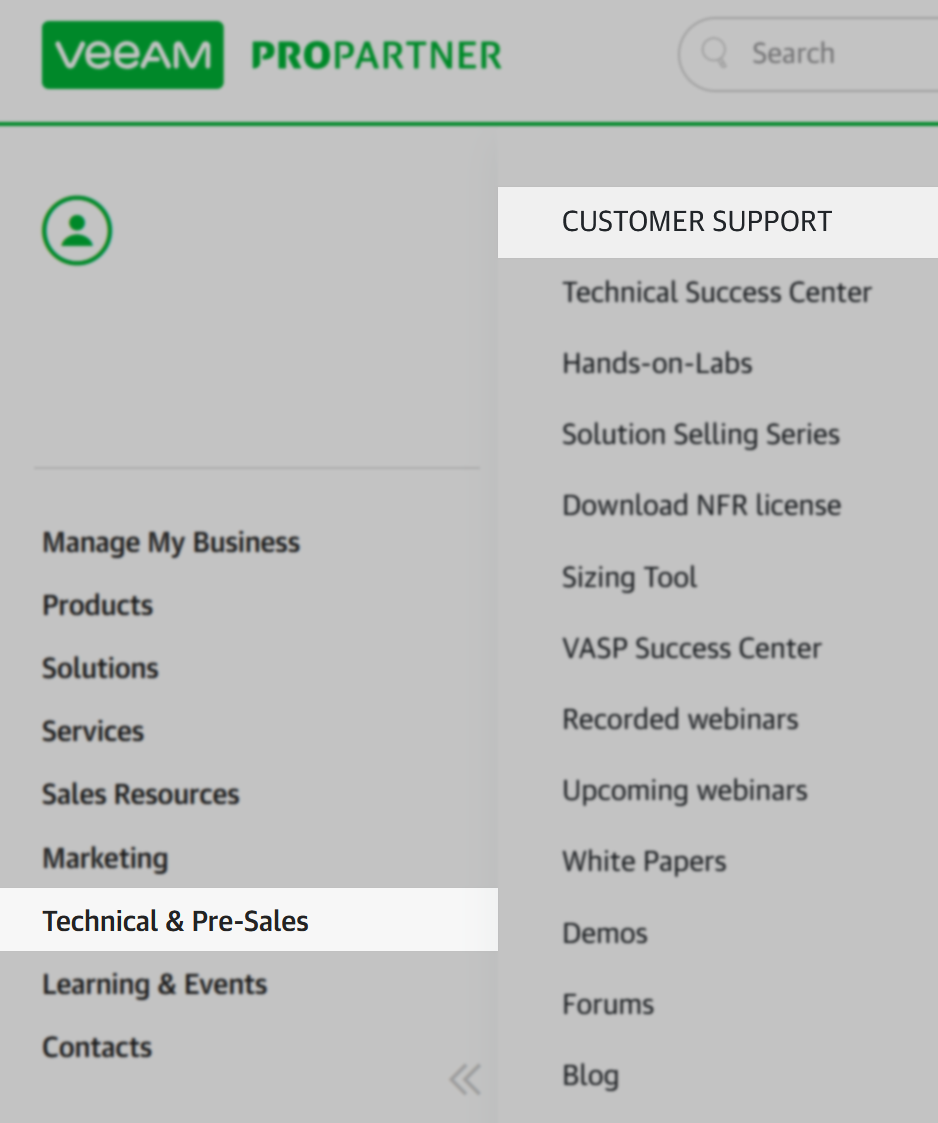
- Click Technical & Pre-Sales on the left-hand toolbar
- Then click Customer Support at the top of the popout menu (fig. 1)
- Find the desired contract
- Click the REQUEST PERMISSION button. The status will change to Pending approval(fig. 2).
After clicking REQUEST PERMISSION, an automated e-mail is sent to the Primary License Administrator of the selected contract with the request.
.png?ck=1634915427012 "Fig. 2 (Request)")
How the Customer receives the approval request

Users with the following roles on the contract can approve a request:
-
Primary License Administrator
-
Secondary License Administrator
After the request is approved or declined, the user from the partner's account who submitted the request will receive a communication from Veeam about the request status.
How to open cases via the ProPartner Portal

Clicking the button will take you to a predefined Open a Case form.
Fill in the remaining required fields, click Next and submit the case as you normally would with any other case.
More Information
Related Articles
- Veeam Account Sign In FAQ
- How to Create a Veeam Account
- Veeam My Account Portal - MFA Guide
- My Account Portal "Recovery email for case contact" Guide
- My Account Portal - Role Management FAQ
- How to Create a Veeam Support Case
- My Account Portal: "No licenses can be found for your account"
- How to Attach Files to a Veeam Support Case
- How to Attach a File Larger Than 5GB to a Support Case
- How to Generate an SFTP Account for a Support Case
- How to Contact Veeam Support Management
- Support Partners Case Management
If this KB article did not resolve your issue or you need further assistance with Veeam software, please create a Veeam Support Case.
To submit feedback regarding this article, please click this link: Send Article Feedback
To report a typo on this page, highlight the typo with your mouse and press CTRL + Enter.
